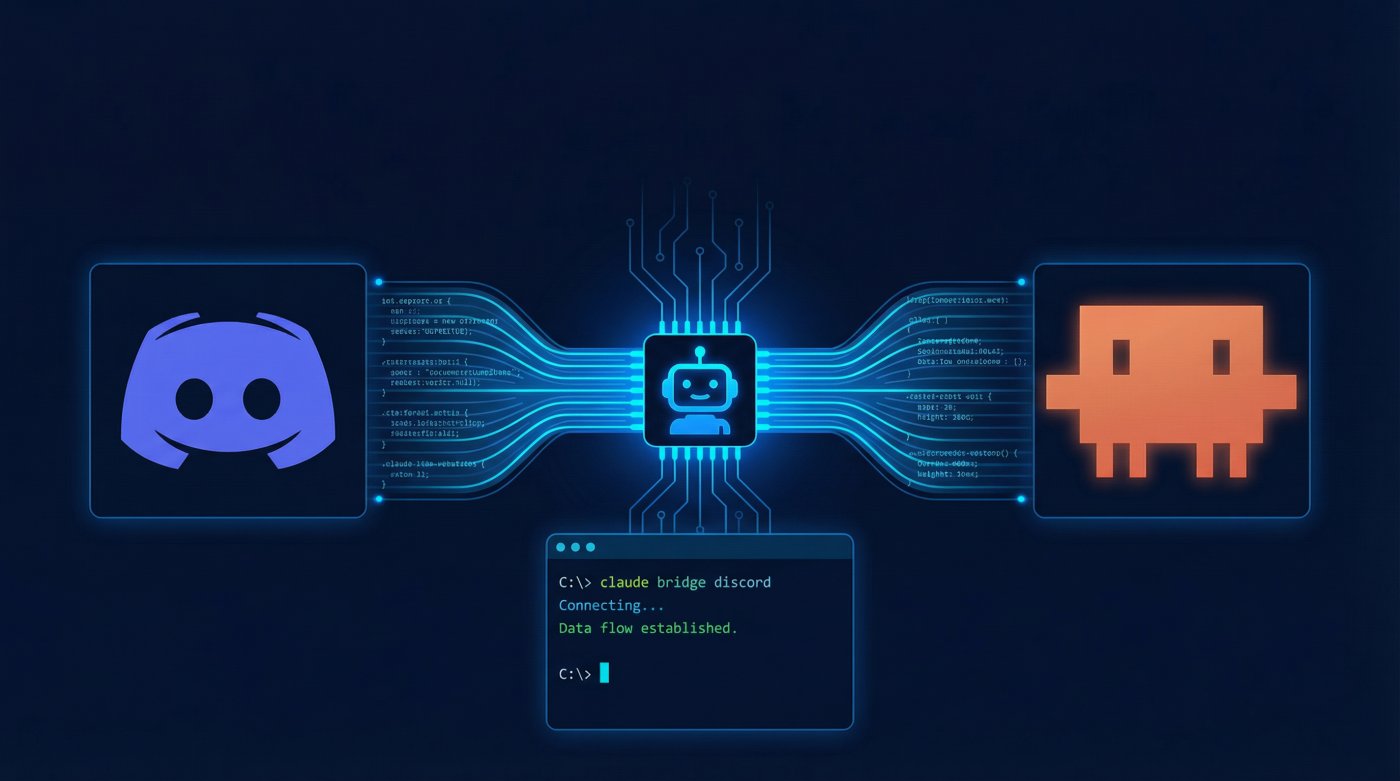



Claude Code Channels with Discord: Step-by-Step Setup Guide – Claude Code just got a whole lot more interesting.
Instead of being chained to your terminal like some kind of command-line hermit, you can now send prompts to a live Claude Code session directly from Discord.
That feature is called Claude Code Channels, and yes, it actually works.
This guide covers everything: what Channels are, what you need before you start, and the full step-by-step setup from installing the plugin to testing your first Discord bot response.
If you already have Claude Code installed and a Discord account ready, you can skip ahead.
Otherwise, settle in.
TL;DR
Hide- Claude Code Channels bridges Discord and a live Claude Code session, letting you send prompts and receive responses through chat
- The feature requires Claude Code v2.1.80+, a Claude.ai Pro or Max account, and Bun installed on your machine
- API key authentication does not work with Channels, you must log in with your actual Claude.ai account
- The official Discord plugin is installed via the
claude-plugins-officialmarketplace inside Claude Code - Message Content Intent must be enabled in the Discord Developer Portal, or the bot will receive empty messages
- Channels only stay active while your Claude Code session is running, close the terminal and the bot goes offline
- The allowlist policy (
/discord:access policy allowlist) limits bot access to approved Discord users only
What Are Claude Code Channels?
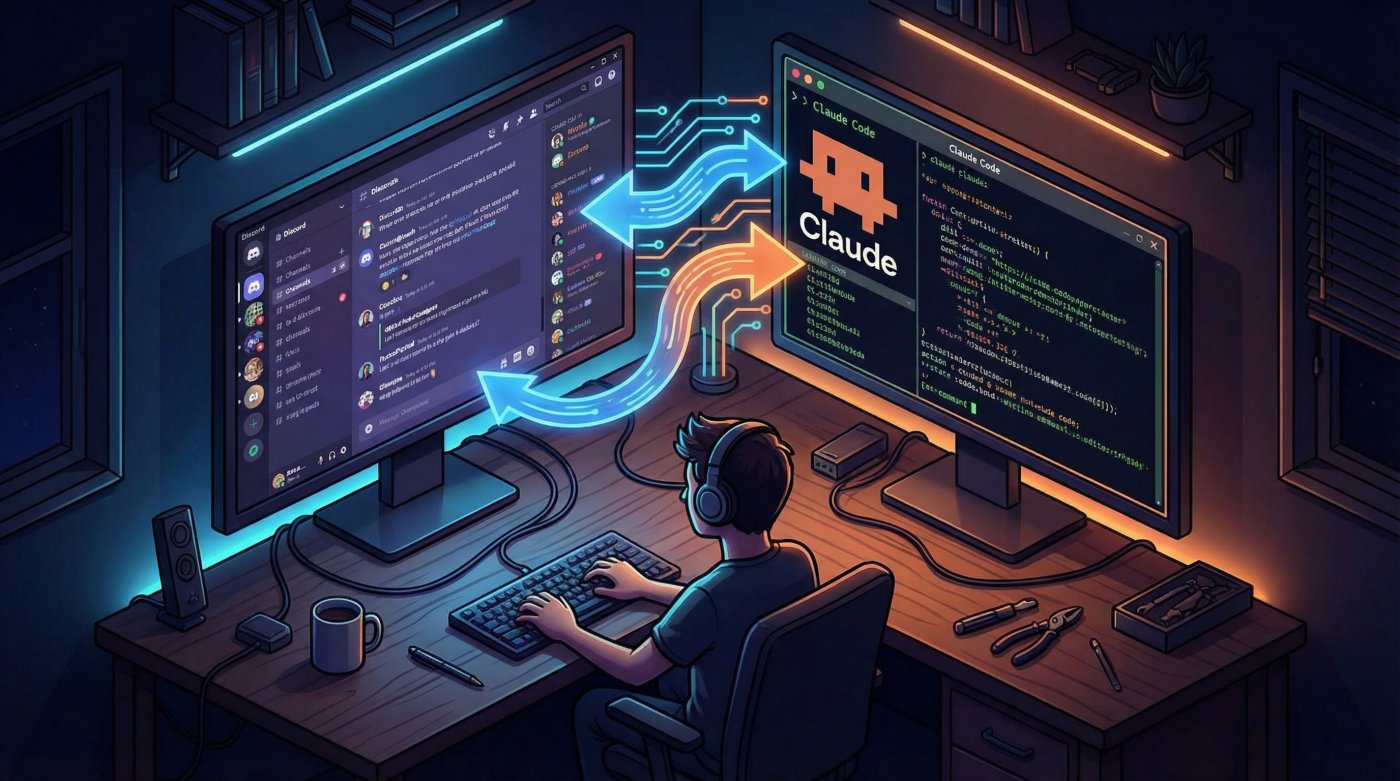
Claude Code Channels is a feature that lets external apps send messages into a live, running Claude Code session.
Think of it as a bridge.
Discord (or Telegram, or a webhook) sits on one end, your terminal session sits on the other, and Claude handles whatever you throw at it from either side.
The key word there is “live.” Channels only work while your Claude Code session is open and actively running.
Close the terminal, and your bot goes dark.
No background magic, no persistent daemon running quietly in the background by default.
You need to keep Claude Code running.
Channels are still in research preview as of 2026, which is a polite way of saying Anthropic reserves the right to change things.
They require Claude Code v2.1.80 or later, a Claude.ai account login (not an API key), and a Pro or Max plan.
Team and Enterprise users may need their org admin to flip a switch before the feature even shows up.
Prerequisites: What You Need Before Starting
Get these sorted before touching anything else.
Skipping any of them will cost you time later.
- Claude Code v2.1.80 or later installed on your machine
- A Claude.ai account signed in through Claude Code (not API key auth)
- A Pro or Max subscription
- Bun installed, since the Discord channel plugin depends on it
- A Discord account with access to a server where you can add a bot
One thing that trips people up early: Claude Code Channels do not work with API key authentication or console-only login.
You must be signed in with your actual Claude.ai account.
If you use Claude Code purely through an API key for billing purposes, Channels will not be available to you until you switch.
Step 1: Install Claude Code
If you already have Claude Code installed and running, skip ahead to Step 2.
For everyone else, head to the official Claude Code website and grab the install command for your platform.
The setup process supports Windows, macOS, Linux, and WSL.
On Windows using PowerShell, run:
irm https://claude.ai/install.ps1 | iexAfter installation, create a project folder, move into it, and start Claude Code:
mkdir cc-channels
cd cc-channels
claude
This opens Claude Code in your terminal and starts a local session.
That running session is the foundation of everything that follows, because Channels only work inside an active Claude Code instance.
If you want a more detailed walkthrough of the installation process, the Claude Code installation guide covers it from scratch across platforms.
Step 2: Log In With Your Claude.ai Account
Channels require Claude.ai account authentication.
When you first open Claude Code, it will usually prompt you to log in.
If it does not, run this inside Claude Code:
/loginThis opens a browser window for authentication.
Complete the login, come back to the terminal, and you are good.
Without this step, Channels will simply refuse to work, and you will spend a confusing amount of time wondering why your bot is not responding.
Step 3: Install Bun
The official Claude Code channel plugins require Bun.
If you do not have it installed, here is the command for Windows via PowerShell:
irm bun.sh/install.ps1 | iexAfter installation, confirm it worked:
bun --versionIf a version number appears, you are set.
If nothing appears, something went wrong with the install, and you should check that your terminal session has access to the updated PATH.
Step 4: Add the Official Plugin Marketplace and Install the Discord Plugin
Claude Code uses a plugin system for Channels, and the Discord plugin lives in the official Anthropic plugin marketplace.
Before you can install anything, you need to make sure that marketplace is added and up to date.
Run these two commands inside Claude Code:
/plugin marketplace add anthropics/claude-plugins-official
/plugin marketplace update claude-plugins-official
If you skip this step and the marketplace is missing, Claude Code will not find the Discord plugin and will tell you it does not exist.
The error message is not exactly helpful, so save yourself the confusion and run these first.
Once the marketplace is ready, install the Discord plugin:
/plugin install discord@claude-plugins-officialThen reload plugins so the new commands are available in your current session:
/reload-pluginsReloading is not optional.
Claude Code may not recognize the Discord plugin commands until you explicitly refresh the plugin state.
Step 5: Create a Discord Bot in the Developer Portal
Open the Discord Developer Portal and click “New Application.” Name it whatever you want, something like “CC-Bot” works fine.
Once created, navigate to the Bot section:
- Click “Reset Token” and copy the new bot token
- Store that token somewhere safe, you will need it in Step 7
- Scroll down and enable Message Content Intent
That last part matters.
Without Message Content Intent enabled, Discord will send the bot empty message content fields, and your Claude Code session will have no idea what anyone is saying to it.
It is a specific Discord requirement for bots that read incoming message text.
Step 6: Invite the Bot to Your Discord Server
Still in the Developer Portal, open the OAuth2 tab and scroll to “OAuth2 URL Generator.”
Check bot under Scopes.
Then select the following Bot Permissions:
- View Channels
- Send Messages
- Send Messages in Threads
- Read Message History
- Attach Files
- Add Reactions
- Send Voice Messages
Discord will generate an invite URL at the bottom of the page.
Copy it, paste it into your browser, choose the server you want to add the bot to, and click Authorize.
The bot will now appear in your server, sitting quietly offline until you connect it.
Step 7: Connect the Bot Token to Claude Code
Back in Claude Code, run:
/discord:configure YOUR_DISCORD_BOT_TOKENReplace YOUR_DISCORD_BOT_TOKEN with the token you copied in Step 5.
Claude Code saves it automatically to:
~/.claude/channels/discord/.envYou do not need to touch that file manually.
The command handles it.
One common issue: if /discord:configure does not work, close your terminal entirely, reopen it, navigate back to your project folder, and launch Claude Code again.
Sometimes the plugin state needs a clean session to register correctly.
Step 8: Start Claude Code With Channels Enabled
At this point, everything is configured, but the Discord bot is still offline.
Channels only activate when you explicitly start Claude Code with the channel flag.
Exit your current Claude Code session, then launch it again with:
claude --channels plugin:discord@claude-plugins-officialThis starts a new Claude Code session with the Discord plugin loaded and listening.
Your bot should now come online in Discord.
If it does not appear online, double-check that the token is correct and that Claude Code is actually running with the --channels flag.
Step 9: Pair Your Discord Account
With Claude Code running and the bot online, open Discord and send a direct message to your bot.
It should reply with a pairing code.
If it does not respond at all, your Claude Code session has likely closed or was started without the --channels flag.
Once you have the pairing code, go back to Claude Code and run:
/discord:access pair YOUR_PAIRING_CODEReplace YOUR_PAIRING_CODE with what the bot sent you.
After pairing, lock down access so only approved Discord accounts can send messages into your session:
/discord:access policy allowlistThis is not a step you want to skip.
Without the allowlist, anyone who can message your bot could potentially interact with your live Claude Code session.
That includes people who find the bot by accident.
Step 10: Test the Setup
Send your bot a message in Discord.
Ask it something simple, request a task, tell it to check something.
The message goes into your running Claude Code session, Claude processes it, and the response comes back in Discord.
A few things to keep in mind during testing:
Permission prompts can pause the bot. Claude Code is designed to ask before taking actions like running shell commands or writing files.
If you ask the bot to do something that triggers a permission check, it will stop and wait for approval in the terminal before responding in Discord.
You will need to approve it manually.
If you want fewer interruptions during testing, you can start Claude Code like this:
claude --dangerously-skip-permissions --channels plugin:discord@claude-plugins-officialThat flag skips permission prompts entirely.
It is convenient for testing, but only use it in environments you fully control.
The name says it pretty clearly.
Troubleshooting Claude Code Channels
Even with every step followed correctly, a few things tend to go wrong.
Here is what to check.
Plugin not found: The official marketplace is probably missing or outdated.
Re-run /plugin marketplace add anthropics/claude-plugins-official and /plugin marketplace update claude-plugins-official, then reinstall the Discord plugin.
/discord:configure does nothing: The plugin is installed but not loaded in the current session.
Run /reload-plugins, and if that does not fix it, restart the terminal and relaunch Claude Code.
Bot shows as offline: Check three things.
Is the bot token correct?
Was Claude Code started with --channels plugin:discord@claude-plugins-official?
Is the Claude Code session still running?
All three must be true simultaneously.
Bot is online but reads empty messages: Message Content Intent is not enabled in the Discord Developer Portal.
Go back and turn it on.
Pairing fails: The bot only generates pairing codes while Claude Code is running with Channels enabled.
If you closed and reopened the terminal since starting the pairing process, start over from Step 8.
Team or Enterprise users not seeing Channels: Your org admin needs to enable the feature in organization settings first.
Channels will not appear until that happens.
Keeping the Session Running
Because Channels depend on an active Claude Code session, you need to plan for how you keep that session alive if you want persistent bot access.
A few practical options:
- Run Claude Code inside a terminal multiplexer like tmux or screen, so the session survives if you disconnect from SSH
- Use a persistent background terminal on a dedicated machine or VPS
- Accept that the bot will only work when you are actively at your computer with Claude Code open
For casual use, that last option is fine.
If you want the bot available all the time, a persistent environment is the way to go.
If you are already running Python scripts in the background on a server, the same patterns apply here.
The guide on running Python scripts in the background on Linux covers process management approaches that translate well to keeping a Claude Code session alive.
What You Can Do With This Setup
Once the bot is connected and paired, you can interact with Claude Code the same way you would in a terminal, just through Discord chat.
A few real use cases:
- Build quick projects on request. Ask the bot to scaffold a directory, write a script, or generate a file, and it will do it in your local session.
- Run web searches. Claude Code can search the web during its session, so you can ask questions that need current information.
- Set reminders and task notes. Simple enough to handle through chat, handy when you are away from your desk.
- Test API integrations. If you are working with APIs, you can have Claude Code write and run test scripts through Discord without switching windows.
The pairing goes both ways, too.
Claude Code sends responses back to Discord, so you get the full output in chat instead of needing to watch the terminal.
Wrapping Up
Claude Code Channels is a genuinely useful feature once it is running.
The setup has more steps than you might expect, but most of the friction is one-time work.
After that, your Discord bot becomes a direct interface into your local Claude Code session, and you can interact with it from anywhere Discord is accessible.
The setup path is: install Claude Code, log in with your Claude.ai account, install Bun, add the official plugin marketplace, install the Discord plugin, create and configure a Discord bot, launch Claude Code with Channels enabled, pair your Discord account, and test.
Ten steps, each straightforward on its own.
If you want to go further with Claude Code, exploring the list of agentic IDEs in 2026 gives a solid picture of where Claude Code fits in the broader landscape of AI-assisted development tools.
Frequently Asked Questions (FAQs)
Does Claude Code Channels work with a free Claude.ai account?
No. Channels require a Pro or Max subscription. Free accounts do not have access to this feature.
Can I connect multiple Discord servers or channels to one Claude Code session?
Currently, the Discord plugin pairs to specific approved Discord users via the allowlist model, not to specific channels or servers.
Any message from an approved sender in any server or DM where the bot exists will route into the same Claude Code session.
Does the bot stay online if I close my laptop?
No. The bot only works while Claude Code is actively running. If the session closes, the bot goes offline.
To keep it running continuously, you need Claude Code open in a persistent environment like a VPS or a tmux session on a remote server.