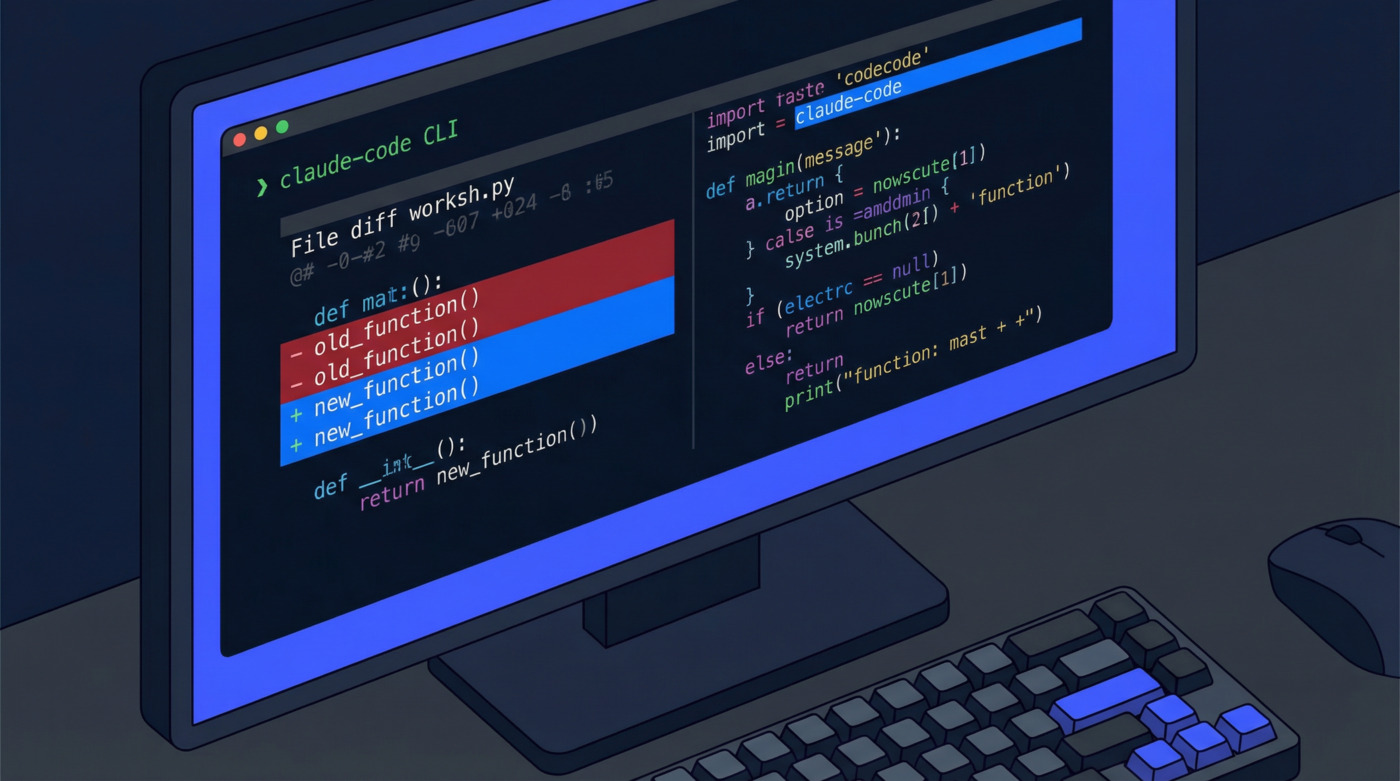



How to Install Claude Code: Complete Setup Guide (2026) – Claude Code is Anthropic’s terminal-based AI coding assistant.
It lives in your command line, reads your actual codebase, writes and edits real files, and runs shell commands on your behalf.
No browser tab required. No copy-pasting code back and forth like it’s 2019.
This guide walks you through everything: prerequisites, installation methods for macOS, Linux, and Windows, authentication, first-run setup, IDE integration, and what to do when things inevitably break.
You will have Claude Code running in under five minutes. Possibly less, if you stop reading every tooltip.
TLDR
Hide- Claude Code requires a paid Anthropic account (Pro, Max, Teams, Enterprise, or Console API) -- the free plan does not include access
- Two installation methods: the native installer (
curl -fsSL https://claude.ai/install.sh | bash) requires zero dependencies, while npm is available if you need version control over the install - Supported platforms: macOS 13+, Ubuntu 20.04+, Debian 10+, and Windows 10+ via WSL or the native PowerShell installer
- Authentication works via browser login for subscription accounts, or an
ANTHROPIC_API_KEYenvironment variable for headless and CI/CD environments - Project-level behavior is controlled through
.claude/settings.json, which can be committed to version control for team-wide consistency - VS Code and JetBrains both have native Claude Code plugins that surface diffs inside the IDE rather than raw terminal output
- If the
claudecommand is not found after installation, a new terminal window or a PATH fix resolves it in most cases
Prerequisites: What You Need Before Installing Claude Code
Before touching a terminal, make sure your setup actually qualifies. Claude Code has real system requirements, and skipping this check is how you end up spending twenty minutes debugging something that should have been caught in thirty seconds.
Here is what you need:
- Operating system: macOS 13.0 (Ventura) or later, Ubuntu 20.04+, Debian 10+, or Windows 10 (version 1809+) with WSL
- RAM: At least 4GB, though 8GB is more comfortable for larger projects
- Internet connection: All AI processing runs on Anthropic’s servers, so no connection means no Claude Code
- Anthropic account: Claude Pro ($20/month), Claude Max ($100-200/month), Teams, Enterprise, or a Console (API) account. The free Claude.ai plan does not include Claude Code access
- Terminal: Bash, Zsh, or PowerShell
- Node.js 18+: Only needed if you use the npm installation method
No GPU required. Your machine just runs a lightweight CLI client and sends requests to Anthropic’s infrastructure. A potato from 2018 can handle that fine.
Step 1: Install Node.js (npm Method Only)
If you are planning to use the native installer, skip this step entirely. It handles dependencies on its own.
If you prefer npm, you need Node.js 18 or higher. Check your current version first:
node --version
If the output shows v18.0.0 or above, move to Step 2. If not, use nvm (Node Version Manager) to install a current version. It avoids the classic permission nightmare that comes with system-level Node installs.
Install nvm on macOS or Linux:
curl -o- https://raw.githubusercontent.com/nvm-sh/nvm/v0.40.1/install.sh | bash
Close and reopen your terminal, then run:
nvm install 22
nvm use 22
node --version
You should see something starting with v22. Node.js 22 is the current LTS release and works cleanly with Claude Code.
On Windows, open your WSL terminal and run the same nvm commands. The WSL setup is covered in the environment-specific section below if you haven’t configured it yet.
Step 2: Install Claude Code
Two installation methods exist. The native installer is now Anthropic’s recommended path. npm is still fully supported if that fits your workflow better.
Native Installer (Recommended)
Zero dependencies. No Node.js needed. Auto-updates in the background. This is the method Anthropic primarily tests and supports.
macOS and Linux:
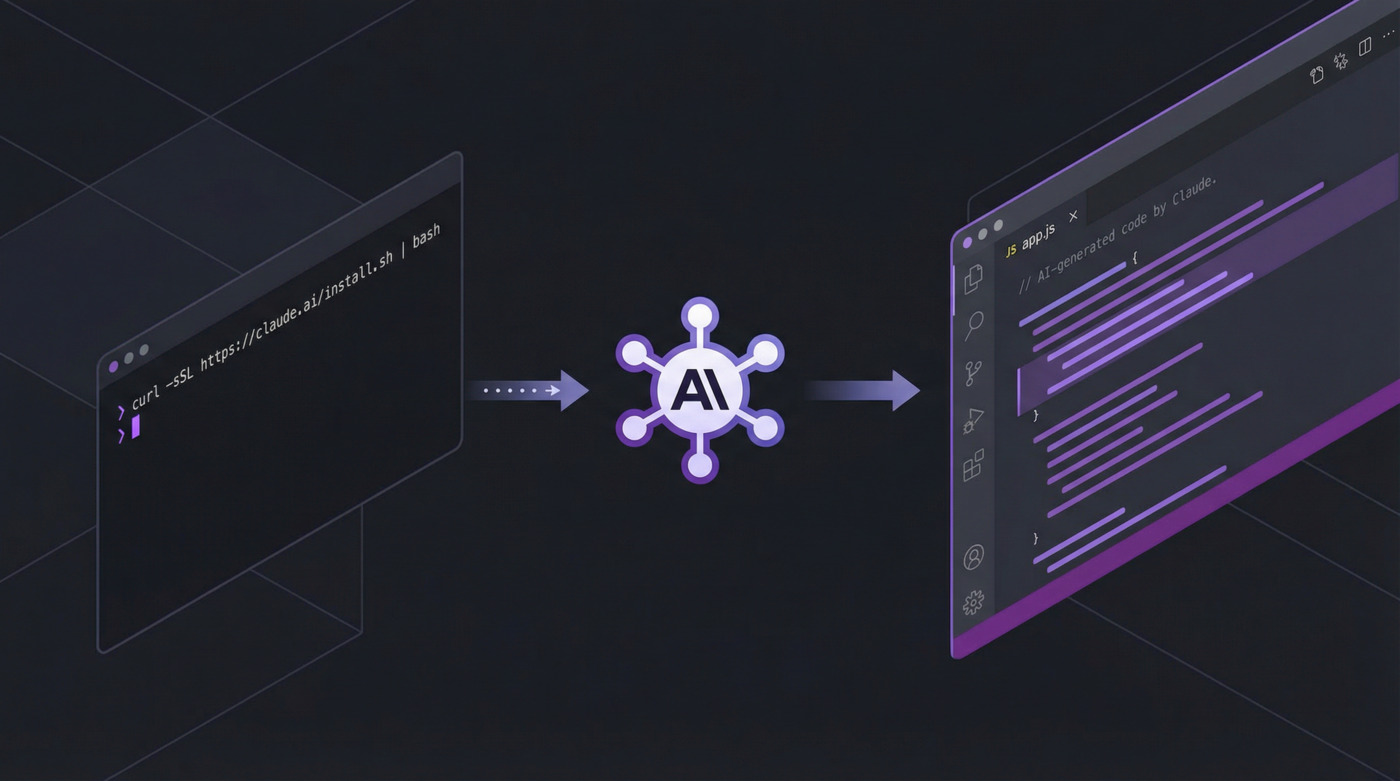
curl -fsSL https://claude.ai/install.sh | bash
Windows (PowerShell, run as Administrator):
irm https://claude.ai/install.ps1 | iex
The installer drops the Claude Code binary into your PATH and configures automatic updates. The whole process takes under a minute.
npm Install
If you need to pin a specific version, or npm is just what your team standardizes on:
npm install -g @anthropic-ai/claude-code
One important note: do not use sudo here. If you hit permission errors, the fix is nvm, not running npm as root. Running npm as root is how you create problems that outlive the project.
Verify the Installation
Either way, confirm Claude Code is installed:
claude --version
You should see a version number. You can also run the built-in diagnostic to check your full environment:
claude doctor
This reports any configuration issues before they become runtime surprises.
Step 3: Authenticate Your Claude Account
Claude Code needs authentication before it does anything. Run:
claude
On first launch, it opens your default browser and prompts you to sign in to your Anthropic account. Follow the steps, authorize the CLI, and you’re connected.
Authentication Options
Browser-based login is the default and works best on personal machines. It handles everything automatically for Pro, Max, Teams, and Enterprise accounts.
API key authentication is the better choice for headless environments, CI/CD pipelines, or remote servers where a browser window is not an option:
export ANTHROPIC_API_KEY=sk-ant-your-key-here
Generate your API key from the Anthropic Console. API usage is billed per token at Anthropic’s standard rates.
As for which billing model to use: subscriptions (Pro/Max) are simpler for regular daily use and include Claude Code within your monthly plan. API billing gives you more granular control for variable or automated workloads. Pick based on volume and predictability, not vibes.
Step 4: Run Your First Claude Code Session
Navigate to any project directory and start Claude Code:
cd ~/my-project
claude
Claude Code reads your project structure and drops you into an interactive session. Start with something low-risk to get a feel for how it operates:
> Explain the architecture of this project
It scans your files, identifies the stack, and gives you a structural summary. Then try something with actual consequences:
> Add input validation to the user registration form
Claude Code identifies the relevant files, proposes the changes, and waits for your confirmation before touching anything. You review each change in a diff view and accept or reject. It doesn’t just overwrite files and hope for the best.
For one-off tasks without entering interactive mode, use the -p flag:
claude -p "Write unit tests for the auth module"
Runs the task, outputs the result, exits. Good for scripting, quick questions, or situations where you want results without the back-and-forth.
Step 5: Configure Claude Code for Your Workflow
Claude Code ships with sensible defaults. But if you plan to use it daily, a few configuration adjustments make a real difference.
Model Selection
Claude Code uses the latest available Claude model by default. To set a specific model:
claude config set model claude-opus-4-6
Or for a single session without changing the default:
claude --model claude-sonnet-4-6
Auto-Accept Permissions
By default, Claude Code asks for confirmation before writing files or running shell commands. If you trust it on a given project and want fewer interruptions:
claude config set permissions.auto-accept-edits true
Useful for speed. Less useful if you’re working on something you actually care about.
Project-Level Settings
Create a .claude/settings.json file in your project root for team-shared configuration:
{
  "permissions": {
    "allow": ["read", "write", "shell"],
    "deny": ["shell:rm -rf *"]
  },
  "model": "claude-sonnet-4-6",
  "environment": {
    "NODE_ENV": "development"
  }
}
Commit this file to version control so your entire team works from the same Claude Code behavior. For personal overrides that shouldn’t be committed, use .claude/settings.local.json instead.
MCP Server Configuration
Claude Code supports Model Context Protocol (MCP) servers for extending its capabilities beyond the default toolset. Configure them in .mcp.json at your project root:
{
  "mcpServers": {
    "github": {
      "command": "npx",
      "args": ["-y", "@modelcontextprotocol/server-github"]
    }
  }
}
This is how you give Claude Code access to things like GitHub, databases, or custom internal tools without rebuilding anything from scratch.
Installing Claude Code on Different Platforms
macOS
Both Apple Silicon (M1 through M4) and Intel Macs are supported. The native installer is the cleanest path:
curl -fsSL https://claude.ai/install.sh | bash
Homebrew also works if that’s how you prefer to manage tools:
brew install --cask claude-code
Linux
Works on Ubuntu 20.04+, Debian 10+, and most modern distributions:
curl -fsSL https://claude.ai/install.sh | bash
On older distributions, use the npm method with nvm to sidestep system-level dependency issues.
Windows (WSL)
Claude Code on Windows requires WSL or Git for Windows. WSL is the cleaner option.
- Open PowerShell as Administrator and install WSL:
wsl --install
- Restart your machine.
- Open the WSL terminal (Ubuntu by default) and install Claude Code:
curl -fsSL https://claude.ai/install.sh | bash
You can also use the native Windows installer directly in PowerShell if WSL feels like overkill for your use case:
irm https://claude.ai/install.ps1 | iex
Docker
For containerized environments, add Claude Code to your Dockerfile:
FROM node:22-alpine
RUN npm install -g @anthropic-ai/claude-code
ENV ANTHROPIC_API_KEY=your-key-here
For CI/CD pipelines, pass the API key at runtime instead of baking it into the image:
docker run -e ANTHROPIC_API_KEY=$ANTHROPIC_API_KEY my-claude-image claude -p "Run the test suite and fix any failures"
CI/CD Pipelines
Claude Code’s headless mode (the -p flag) is built for automation. Here is a GitHub Actions example:
- name: AI Code Review
  run: |
    npx @anthropic-ai/claude-code -p "Review the changes in this PR and suggest improvements" --output-format json
  env:
    ANTHROPIC_API_KEY: ${{ secrets.ANTHROPIC_API_KEY }}
The --output-format json flag returns structured output that downstream steps can parse without regex gymnastics.
Claude Code IDE Integration
Claude Code is a terminal-first tool. That said, if you’d rather not live in a raw terminal window all day, there are proper IDE integrations.
VS Code Extension
The VS Code extension gives you a native graphical interface for Claude Code inside your editor. It includes a chat panel, checkpoint-based undo, file references via @-mentions, and support for running multiple conversations in parallel tabs.
Install it directly from the Extensions panel by searching for “Claude Code”, or run:
code --install-extension anthropic.claude-code
Changes appear in VS Code’s native diff viewer, which is a significant improvement over squinting at terminal output.
JetBrains Plugin
For IntelliJ IDEA, PyCharm, WebStorm, GoLand, and other JetBrains IDEs:
- Open your IDE
- Go to Settings > Plugins > Marketplace
- Search for “Claude Code”
- Click Install and restart
The plugin runs the Claude Code CLI inside your IDE’s integrated terminal and surfaces proposed changes in the IDE’s diff viewer. Currently in beta, but functional enough for daily use.
If you’re into building things with FastAPI or working on Python automation projects, the IDE integration makes it much easier to keep Claude Code in context alongside your actual development workflow without constantly switching windows.
Previously I wrote about the best agentic IDEs in 2026 which you can try Claude Code with.
Keeping Claude Code Updated

Native Installer
Updates happen automatically in the background. Nothing to manage. You can set your update channel if you want more control:
claude config set update-channel stable
Check the current version anytime:
claude --version
npm
Manual updates:
npm update -g @anthropic-ai/claude-code
Or install a specific version:
npm install -g @anthropic-ai/claude-code@latest
Troubleshooting Common Claude Code Issues
Things go wrong. Here is what to do when they do.
“command not found: claude”
The binary is not in your PATH. If you used the native installer, open a new terminal window first. If that doesn’t fix it, run the install script again. For npm installations, find your global npm bin directory:
npm config get prefix
Add the bin subdirectory of that path to your shell’s PATH variable in .bashrc or .zshrc.
“Node.js version too old”
Check your version:
node --version
If it’s below 18, install a newer one:
nvm install 22
nvm use 22
npm Permission Errors (EACCES)
Do not use sudo npm install -g. That path leads to a permissions tangle that haunts you later. Use nvm instead:
curl -o- https://raw.githubusercontent.com/nvm-sh/nvm/v0.40.1/install.sh | bash
nvm install 22
npm install -g @anthropic-ai/claude-code
Authentication Fails or Browser Won’t Open
Common on remote servers or WSL environments. Use an API key instead:
export ANTHROPIC_API_KEY=sk-ant-your-key-here
claude
Generate your key at console.anthropic.com.
Network Errors During Installation
Your network or firewall may be blocking requests. Try setting the npm registry explicitly:
npm config set registry https://registry.npmjs.org/
Behind a corporate proxy:
npm config set proxy http://your-proxy:8080
npm config set https-proxy http://your-proxy:8080
Claude Code Runs Slowly
The CLI itself is lightweight. Slowness is almost always network latency to Anthropic’s API. Check your connection, try disconnecting from any VPN, and check the API status at status.anthropic.com.
Claude Code vs Other AI Coding Tools
Claude Code is not the only option in this space, and it’s worth knowing what makes it different.
It runs entirely in your terminal against your real file system. It reads your actual project, not a pasted snippet.
It can chain multi-step operations, run shell commands, and make coordinated edits across multiple files in a single session. Browser-based chat tools require you to do the copy-paste relay race manually.
Compared to tools like Cursor (which is an editor fork), Claude Code integrates into whatever editor you already use.
If you’ve already built a workflow around VS Code, JetBrains, or a plain terminal, Claude Code fits in without forcing a tool migration.
If you’re already testing AI models through the API directly, you’ve probably worked with the Anthropic Claude API.
Claude Code is essentially that capability packaged as a developer tool rather than an API client, with file system access and session context baked in.
For a broader look at what’s available across the AI landscape, the ChatGPT alternatives roundup covers the current field in more detail.
What to Do After Installation?
Claude Code is installed. Authentication is done. Now what?
Start with a real project, not a toy example. Give it a task that would normally take you twenty minutes and see how it handles context, file traversal, and multi-step edits.
The learning curve is short because the interface is just a terminal prompt, but the depth of what it can do becomes obvious quickly.
If you’re building Python tooling, working with APIs, or doing any kind of automation work, Claude Code fits naturally into that kind of development cycle.
It’s a practical tool for the kind of hands-on coding that fills most developer days, not a demo for impressing investors.
For context on how AI tools are evolving across the development workflow, the best vibe coding tools roundup for 2026 covers the current landscape if you want to compare where Claude Code sits relative to other options in the space.
Frequently Asked Questions (FAQs)
Does Claude Code work without a paid Anthropic subscription?
No. The free Claude.ai plan does not include Claude Code access. You need at least a Claude Pro account ($20/month), a Claude Max account, a Teams or Enterprise plan, or an API key from the Anthropic Console billed per token.
Can I use Claude Code on Windows without WSL?
Yes. The native Windows installer (irm https://claude.ai/install.ps1 | iex run in PowerShell as Administrator) works without WSL.
WSL is recommended for a more complete Linux-compatible environment, but it is not mandatory.
Is Claude Code safe to use on production codebases?
Claude Code asks for confirmation before writing files or running shell commands. You review every change in a diff view before it’s applied.
You can also configure explicit permission rules in .claude/settings.json to block specific operations.
That said, common sense applies: test on a branch, not directly on main.